
Scripts from a customer's ASL can be added to the eQueue via the Add to eQueue form, or directly from the Dispense Form.
It is best to use the Add to eQueue form when:
- There are scripts from multiple customers to be added in one basket
- A combination of eScripts from an ASL, eScripts from a token and/or paper scripts are to be added to the basket
- Notes need to be added to the basket
- The basket is to be dispensed at a later time/date
It can be more efficient to add ASL scripts directly from the Dispense Form when:
- The scripts are all from an ASL
- The scripts are all for the same customer
- The customer is waiting in store
- There are no notes or other information to be recorded
Add ASL scripts to the eQueue via the Add to eQueue form

1. Select the patient by either:
- Searching for the customer in Select Customer, as per Overview of the eQueue - Add to Queue form or
- Clicking Add ASL Customer from the Active Script List section. Use this option when multiple patient’s scripts need to be added to the basket
a. The Active Script List section lists all patients that have been selected and displays their corresponding. ASL status/s.
- If the patient has a grey A icon, refer to Troubleshoot ASL
- If the patient has a red A icon, refer to Register a Patient for an ASL or Register a patient for an ASL - video. A patient cannot be registered for an ASL from the eQueue - Add to Queue form
- If the patient has a yellow A icon, the patient has an ASL but your pharmacy does not have consent:
i. Highlight the patient and click Request Consent.
The Consent to MySL window is displayed. ii. Click Request Consent. The patient/primary carer will be sent either an SMS or Email to grant your pharmacy access to the ASL.
- If the patient has a green A icon the patient has an ASL and your pharmacy has consent to view it
iii. Highlight the patient and click View ASL.
The Active Script List window displayed.
iv. Highlight the required script/s using standard windows shortcuts or click Select All to select all scripts in the ASL.
Note Only eScripts can be highlighted.
v. Click Add to eQueue.
b. The eScripts Queued section is updated with the selected eScripts.
Note other eScripts can be queued by scanning the token in the Scan Script Barcode field. Refer to Overview of the eQueue - Add to Queue form for more information.
Tip Right click the mouse in the Active Script LIst or eScripts Queued sections to open the Legend.


Add ASL scripts to the eQueue directly from the Dispense Form
- Select the relevant customer in the Dispense Form.
- Click ASL View.
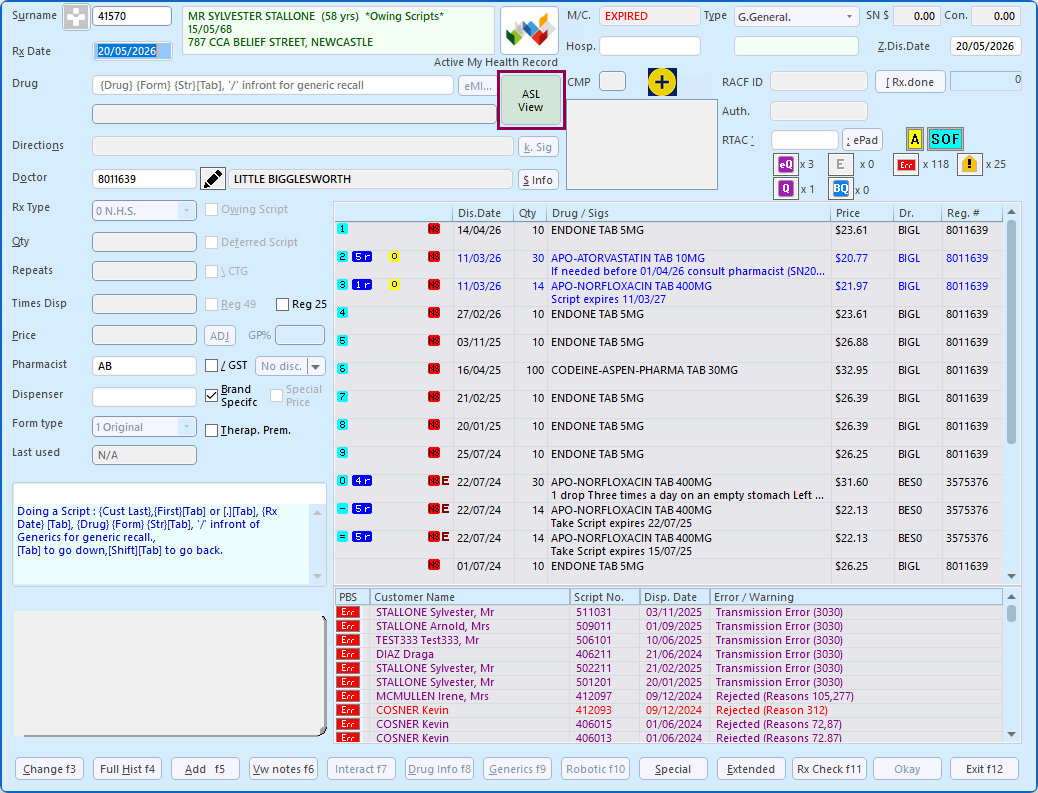
The Active Script List is displayed.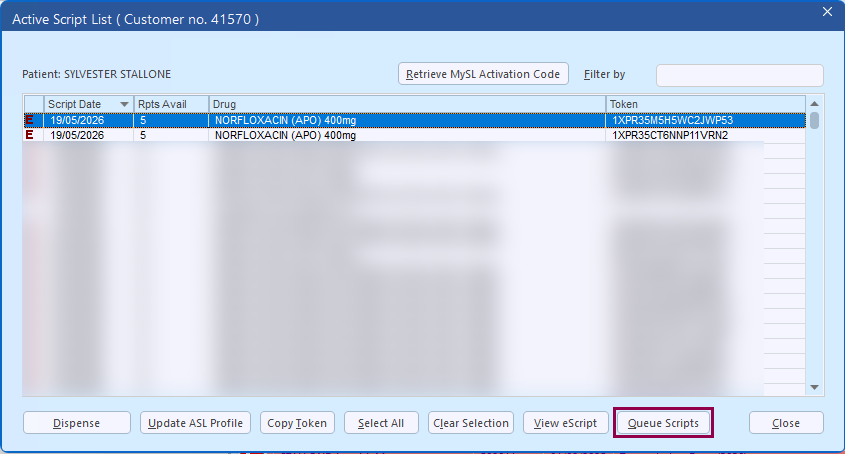
- Select the script/s to be added to the eQueue and click Queue Scripts.
A basket containing the selected script/s is created and added to the eQueue. The basket is set to Waiting status, ready to be dispensed when convenient. Customer details such as mobile number, email, and concession number are automatically populated from their profile where available.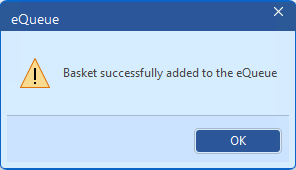
- Click OK to return to the Active Script List window.