
The Sales Enquiry window allows you to view transactions within a specified date range and transaction type. You can easily select and drill down on specific sales to view the details of the sale.
- The Sales Enquiry window can be accessed from the Customer and Till modules.
- From the Customer module:
- Click Enquire.
- Select 4. Sales Enquiry.
- Alternatively, click the Sales Enquiry icon.

- From the Till module:
- Click Enquiry.
- Select 1. Sales Enquiry.
- Alternatively, click the Sales icon.

- From the Customer module:
The Sales Enquiry window is displayed.
The current day's sales are displayed by default. 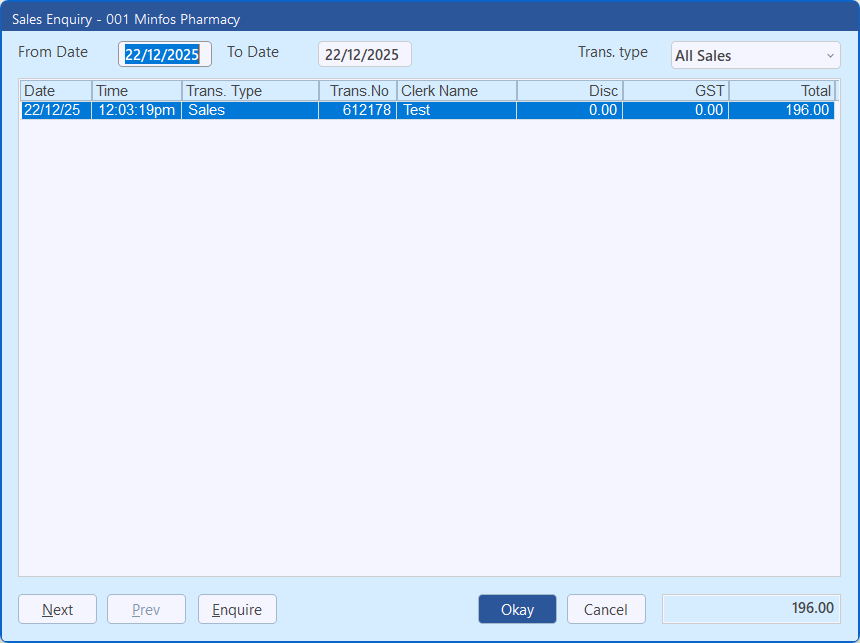
- To view another date or date range, enter the required date/s in the From Date and To Date fields, then press [Tab].
Transactions within the specified date range are displayed.
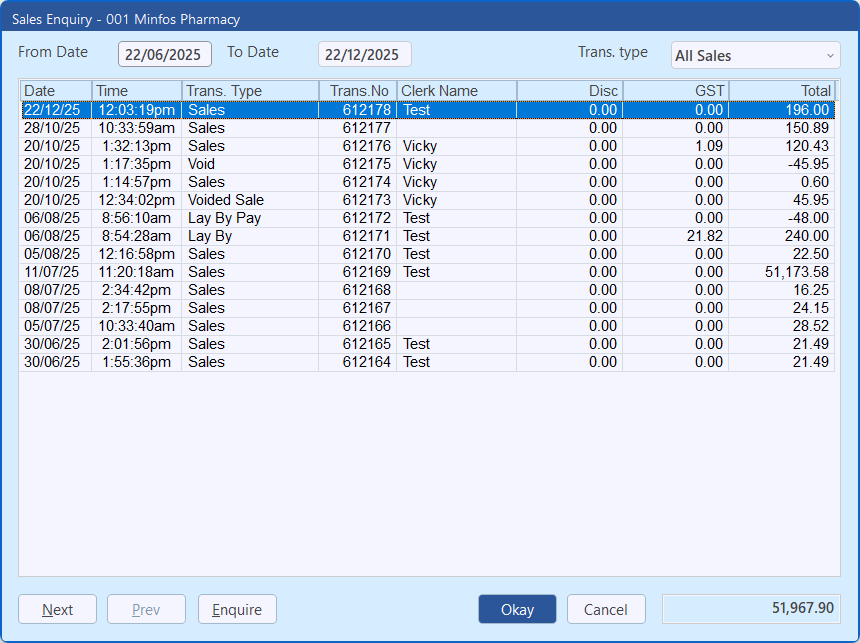
By default, all transaction types are displayed.
- Click the Trans. type dropdown to view sales of a specific type. Select from:
- All Sales
- Sales
- Return
- Payment
- Lay By
- Lay By Pay
- Cash Out
- Warehouse
- Account Sales
- If required, click Next or Prev to move through the sales.
- To view the details of a specific sale, select the sale and click Enquire.
The Sale Detail Enquiry window is displayed.
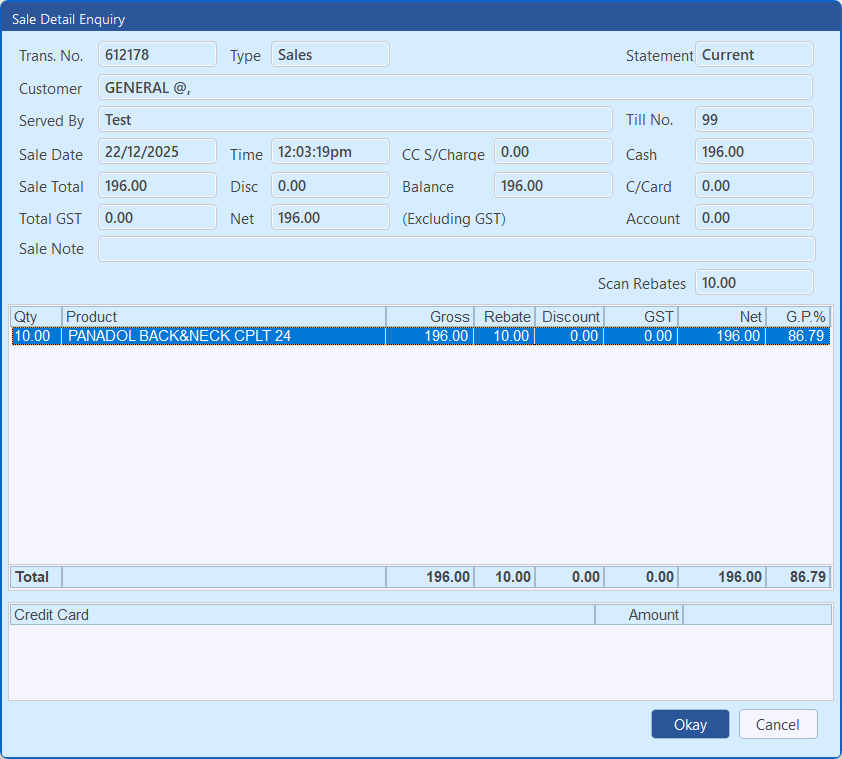
Note The Rebate column is only displayed for pharmacies who have Scan Rebates enabled.
- Click Cancel to exit the Sales Enquiry window.