
Smart Complete lets your store automatically complete eligible electronic invoices, reducing manual processing and saving time.
Once enabled in Shop Configuration, Minfos compares the supplier’s invoice total with the total collected in your store. If the difference falls within your set acceptable variance (Invoice Total Threshold) and does not trigger any of your set exclusion rules, the order moves straight from Issued to Completed, and stock on hand is updated automatically.
Automatically completed invoices display Completed via Smart Complete for ease of identification.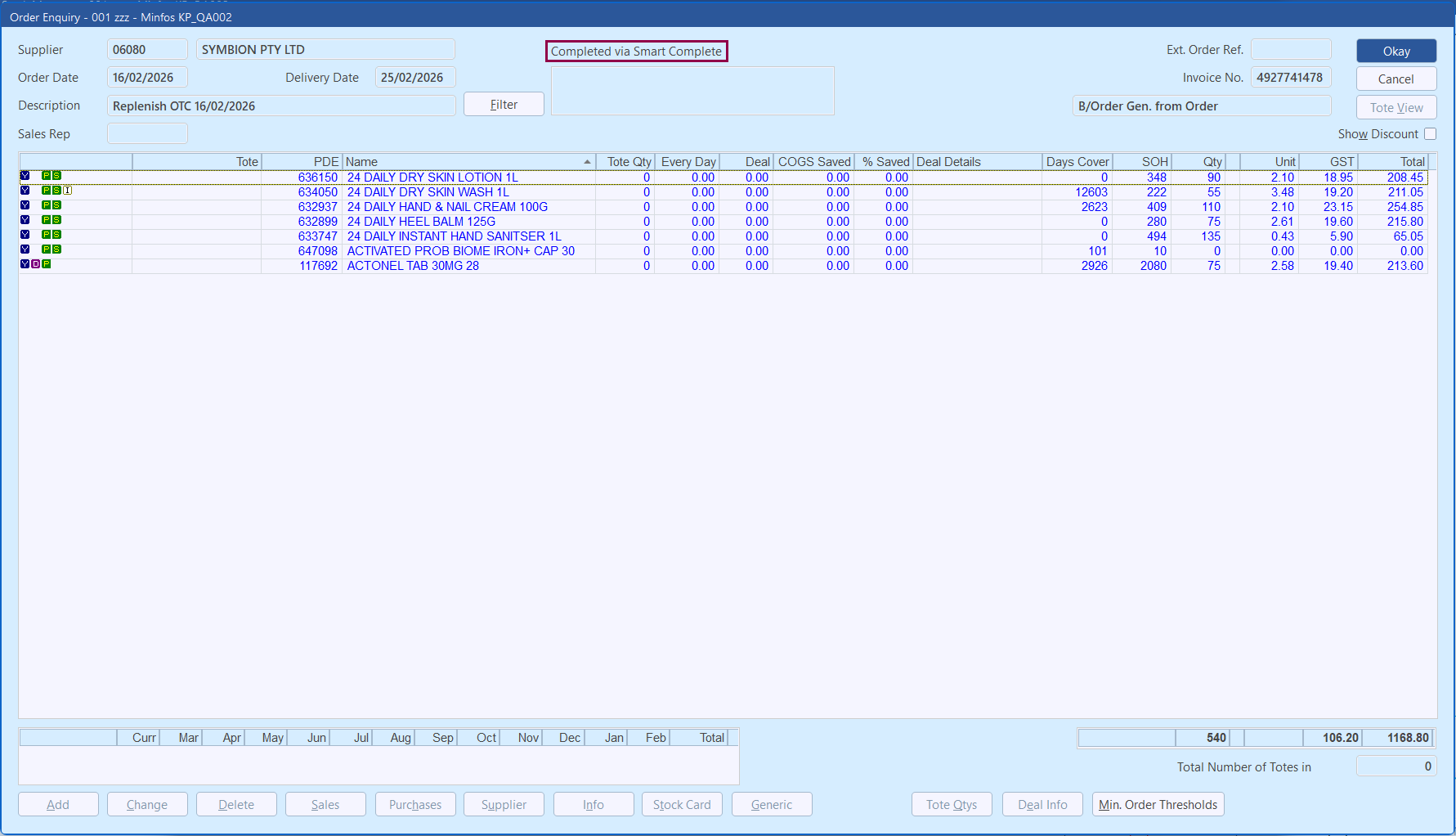 Any invoices outside your threshold or that trigger any set exclusion rules remain in Received status for manual review.
When you turn on Smart Complete in Shop Configuration for the first time, all electronic suppliers are automatically enabled. If needed, you can easily exclude specific suppliers in Supplier Maintenance.
Smart Complete Eligibility Criteria

To be eligible for Smart Complete, an invoice must meet all of the following conditions:

1. Electronic transmission: The invoice must be received electronically through the PharmX or MVX gateway.

2. Minfos-originated order: The order must have been created and sent electronically from Minfos.

3. No Schedule 8 items: Invoices containing Schedule 8 items are excluded and will remain in Received status.

4. Not a duplicate: Re-sent invoices are excluded. If an invoice is re-sent, the order will not be updated.

5. First invoice only: Only the first invoice for an order is eligible. Subsequent invoices (e.g. from split orders or backorders) must be handled manually using existing processes.

6. Order not already completed: If the order was manually completed in Minfos before the electronic invoice was collected (i.e. a late invoice), Smart Complete will not process it.

7. Within Invoice Total Threshold: The difference between the expected and downloaded invoice totals is within your set Invoice Total Threshold.

8. Exclude Smart Complete where invoice rules are not triggered: The invoice is not deemed ineligible according to any set Exclude Smart Complete where invoice options.
Enable Smart Complete
- From the Minfos Launch Pad, click Special.
- Select Utilities.
The Utilities module is displayed.
- Click Config and select 1. Shop Configuration.
Alternatively, click the Shop Configuration icon.
The Shop Configuration window is displayed.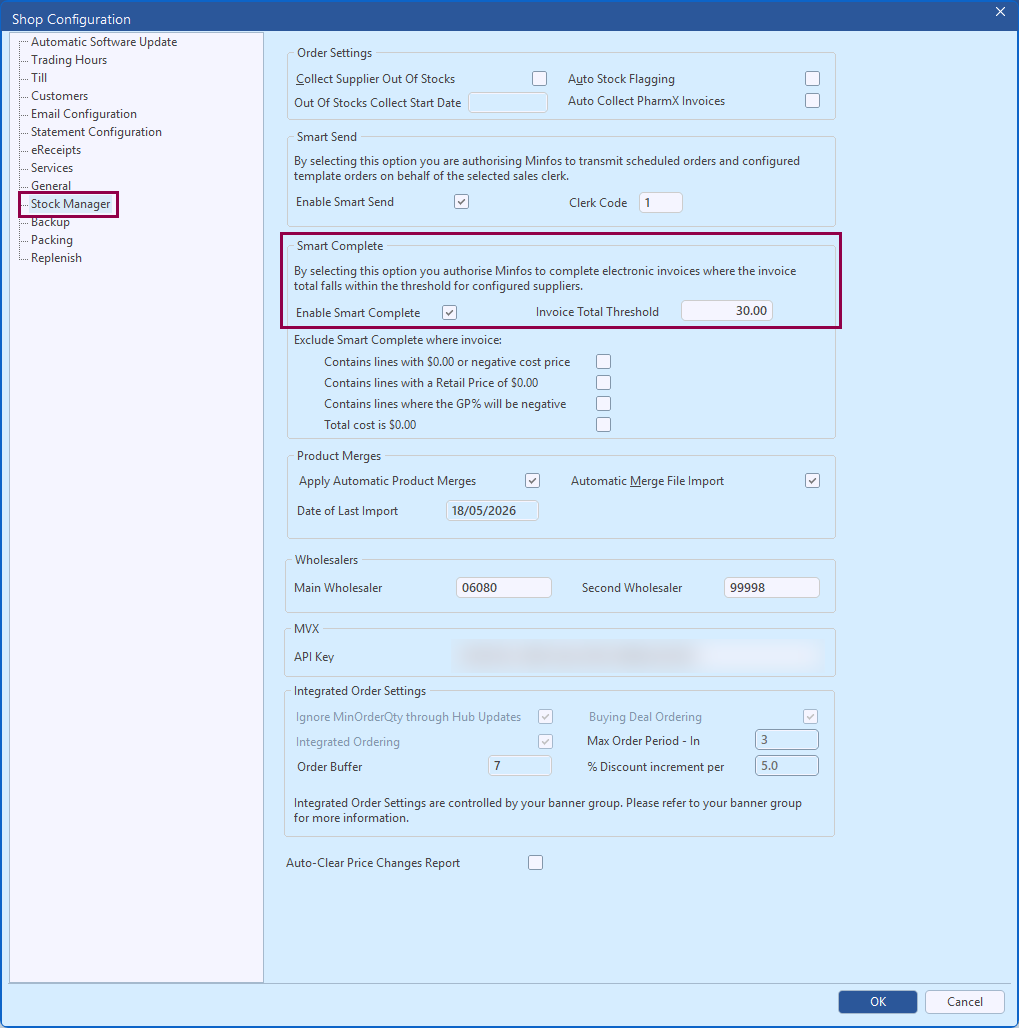
- Click the Stock Manager tab.
- In the Smart Complete group box, tick Enable Smart Complete.
The Invoice Total Threshold field is now enabled.
- In the Invoice Total Threshold field enter the dollar value you wish to set as the maximum acceptable difference between the expected invoice total in Minfos, and the invoice total on the electronic invoice. The difference may be negative or positive. That is, the electronic invoice total may be over or more than the expected total in Minfos, or less than or under the expected total in Minfos.
Example Scenarios

A. The Invoice Total Threshold is set to $100. If the Invoice Total in Minfos is $2000 and the Invoice Total on the electronic invoice is $2050, the invoice will be automatically completed.

B. The Invoice Total Threshold is set to $100. If the Invoice Total in Minfos is $2000 and the Invoice Total on the electronic invoice is $1925, the invoice will be automatically completed.

C. The Invoice Total Threshold is set to $100. If the Invoice Total in Minfos is $2000 and the Invoice Total on the electronic invoice is $2150, the invoice will not be automatically completed.
- Check any Exclude Smart Complete where invoice... rules that you wish to apply. You can enable any combination of the exclusion rules. When any enabled rule is triggered, the invoice will remain in Received status.
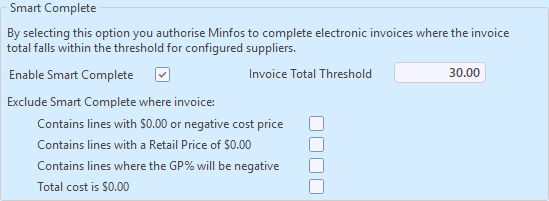
- Contains lines with $0.00 or negative cost price — Prevents automatic completion when any line item on the invoice has a zero or negative cost price
- Contains lines with a Retail Price of $0.00 — Prevents automatic completion when any line item has a retail price of $0.00 in Minfos
- Contains lines where the GP% will be negative — Prevents automatic completion when any line item would result in a negative gross profit percentage
- Total cost is $0.00 — Prevents automatic completion when the total invoice cost is zero
- Click OK to save.
When you turn on Smart Complete in Shop Configuration for the first time, all electronic suppliers are automatically enabled. If needed, you can easily exclude specific suppliers in Supplier Maintenance.
Manage Smart Complete for individual suppliers
- From the Stock Manager module, click Maintenance and select 2. Suppliers.
Alternatively, click the Suppliers icon.
The Supplier Maintenance window is displayed.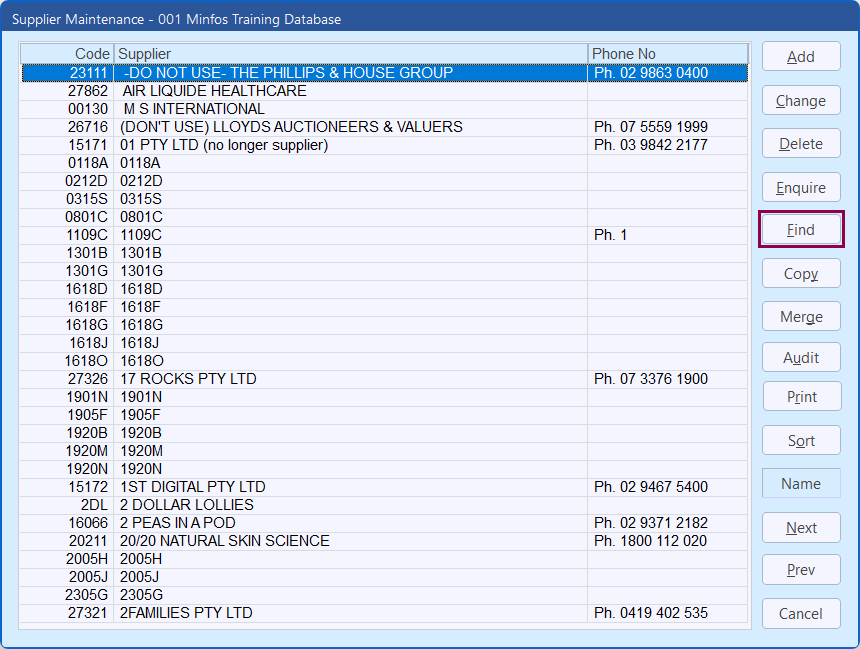
- Click Find.
The Search window is displayed.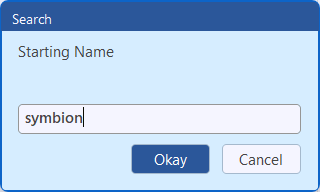
- Enter the Name or Code of the relevant supplier, then click Okay.
The search results are displayed in the Supplier Maintenance window.
- Select the relevant supplier.
- Click Change.
The Supplier Editing window is displayed.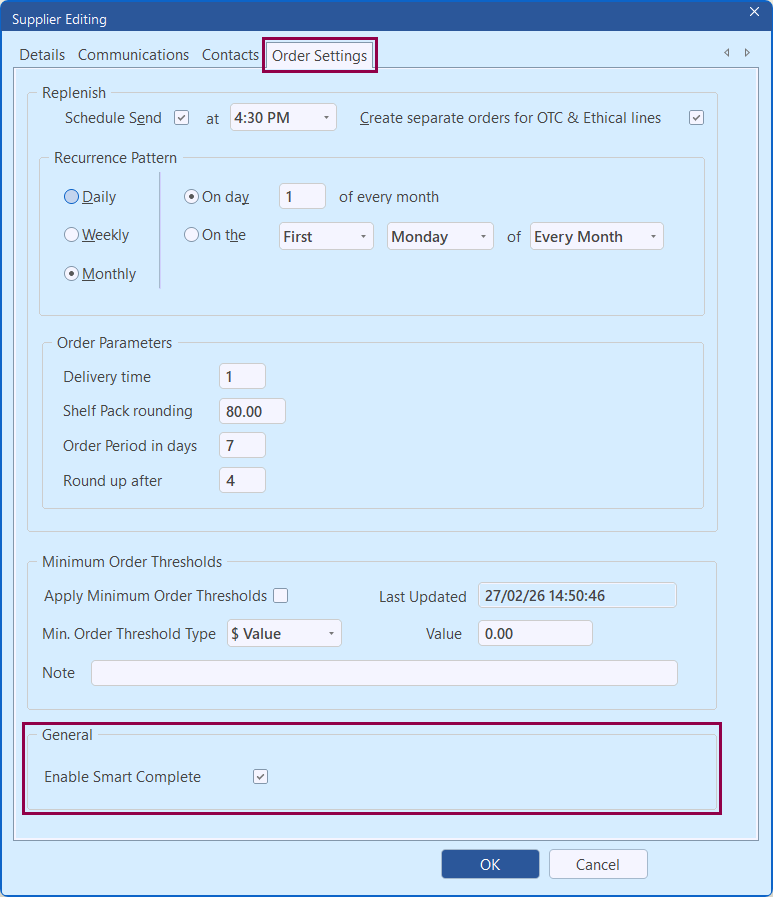
- Click the Order Settings tab.
- In the General group box:
- If you do not want invoices for this supplier to automatically complete - untick Enable Smart Complete.
- If you do want invoices for this supplier to automatically complete - ensure Enable Smart Complete is ticked.
- Click OK to save.
- Repeat this process for other suppliers if required.